Thursday, July 7, 2022

How to Run Fast Point-in-Polygon Tests with Python

Finding if given geolocation (point) exists in a given GeoShape (Polygon) file. 

A tutorial for performing fast point-in-polygon tests with Python's Shapeley and Geopandas.
by Martin D. Maas, Ph.D

Last updated: 2021-05-04

https://www.matecdev.com/posts/point-in-polygon.html#how-to-check-if-a-point-is-inside-a-polygon-in-python

On this page:

Performing point-in-polygon queries is one of the most commonplace operations in geospatial analysis and GIS. As Python is a great tool for automating GIS workflows, being able to solve this basic problem of computational geometry as efficiently as possible is often a prerequisite for further analysis.

How to check if a point is inside a polygon in Python

To perform a Point in Polygon (PIP) query in Python, we can resort to the Shapely library's functions .within(), to check if a point is within a polygon, or .contains(), to check if a polygon contains a point.

Here's some example code on how to use Shapely.

from shapely.geometry import Point, Polygon    # Create Point objects  p1 = Point(24.82, 60.24)  p2 = Point(24.895, 60.05)    # Create a square  coords = [(24.89, 60.06), (24.75, 60.06), (24.75, 60.30), (24.89, 60.30)]  poly = Polygon(coords)    # PIP test with 'within'  p1.within(poly)     # True  p2.within(poly)     # False    # PIP test with 'contains'  poly.contains(p1)   # True  poly.contains(p2)   # False 

How to get a list of points inside a polygon in Python

One of the simplest and most efficient ways of getting a list of points inside a polygon with Python is to rely on the Geopandas library and perform a spatial join. To do this, we simply create one geodataframe with points and another one with polygons, and join them with 'sjoin'.

In this example, we will use, as polygons, the shapefile of US counties and a list of random points, uniformly distributed in the lat-long region of (23,51)x(-126,-64).

Let's begin by importing all the libraries we are going to need

import geopandas as gpd  import pandas as pd  import numpy as np  import matplotlib.pyplot as plt  from shapely.geometry import Point  

Now we open a shapefile containing our polygons

# Open the shapefile  counties = gpd.GeoDataFrame.from_file('cb_2018_us_county_20m.shp')  

That's it for the polygons, let's move on now to generate a GeoDataFrame with some points

# Generate random points  


N=10000 lat = np.random.uniform(23,51,N) lon = np.random.uniform(-126,-64,N) # Create geodataframe from numpy arrays df = pd.DataFrame({'lon':lon, 'lat':lat}) df['coords'] = list(zip(df['lon'],df['lat'])) df['coords'] = df['coords'].apply(Point) points = gpd.GeoDataFrame(df, geometry='coords', crs=counties.crs)

Finally, let's perform the spatial join:

# Perform spatial join to match points and polygons  pointInPolys = gpd.tools.sjoin(points, counties, op="within", how='left')  

That's it, we have just matched points and polygons!

Now, let's use this to retrieve the points from a specific polygon, as follows:

# Example use: get points in Los Angeles, CA.  pnt_LA = points[pointInPolys.NAME=='Los Angeles']  

That's it, now let's plot everything

# Plot map with points in LA in red  base = counties.boundary.plot(linewidth=1, edgecolor="black")  points.plot(ax=base, linewidth=1, color="blue", markersize=1)  pnt_LA.plot(ax=base, linewidth=1, color="red", markersize=8)  plt.show()  

This will produce the following image:
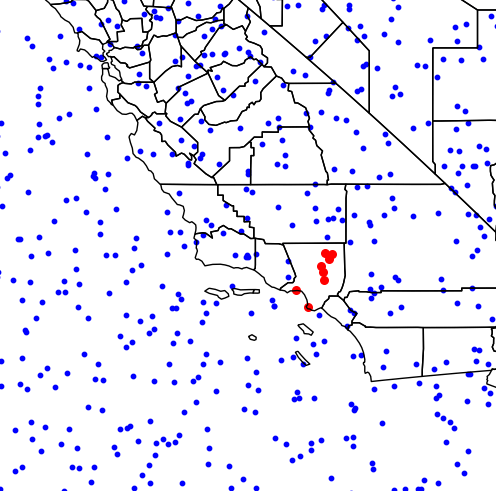
Points in LA countyRetrieving points in a specific polygon from a list of points-in-polygons

You can download the complete script here

Saturday, January 22, 2022

Geo Tagging in google forms

Ref : stackoverflow.com

Maybe this works: https://www.youtube.com/watch?v=J93uww0vMFY

Tutorial on Geotagging (Geo-stamp and Time-stamp) google forms. Add info on Latitude, Longitude, and Address (Street name and number, city, state, zip code, and country) of a device submitting google forms. Linking user's location within google forms. Google forms integration with google maps.

Links to download the scripts are given below:

  1. Code.gs : https://www.youtube.com/redirect?v=J93uww0vMFY&event=video_description&q=https%3A%2F%2Fdrive.google.com%2Fopen%3Fid%3D1D4vTzUGZAf3_ZDVMeW760i1KoZCn37un&redir_token=VQ2rLeQvyQea-mq9_kGhh_Kxihd8MTU5MTgxOTM2OEAxNTkxNzMyOTY4

  2. Index.html : https://www.youtube.com/redirect?v=J93uww0vMFY&event=video_description&q=https%3A%2F%2Fdrive.google.com%2Fopen%3Fid%3D1mYZGYNrXNOxUD8DlDmRdBajy1nc3FKtw&redir_token=VQ2rLeQvyQea-mq9_kGhh_Kxihd8MTU5MTgxOTM2OEAxNTkxNzMyOTY4

Monday, January 17, 2022

Microsoft Teams new features 2022


The 10 best new Microsoft Teams meeting features

Microsoft keeps adding new enhancements to Teams. Here's how to use some recently introduced features for better Teams video meetings. 

  • Share on Facebook
  •  
  • Share on Twitter
  •  
  • Share on LinkedIn
  •  
  • Share on Reddit
  •  
  • Share by Email
  •  
  • Print resource
Microsoft Teams videoMicrosoft

Over the past year or so, Microsoft has added a host of new capabilities to Teams, its chat and videoconferencing hub, focused on improving video meetings with co-workers and other colleagues. Here's a rundown of the key new features to know and how to use them.

Note that this guide refers to the Microsoft Teams desktop app for Windows and macOS included with Microsoft 365/Office 365 business and education subscriptions. Some of these features are not offered in the web or mobile apps or in consumer versions of Teams, including the free version.

1. Breakout rooms

Breakout rooms are basically mini-meeting rooms that are associated with a larger meeting. Each breakout room has most of the usual meeting features including participant audio and video feeds, a chat pane, and screen-sharing capabilities.

If you have a small team that needs to speak and present in a meeting, they could benefit from prepping and conferring with each other in a separate breakout room while the main meeting is taking place. In another scenario, you could put all meeting participants into breakout rooms to facilitate small-group discussions before bringing everybody back to the main meeting.

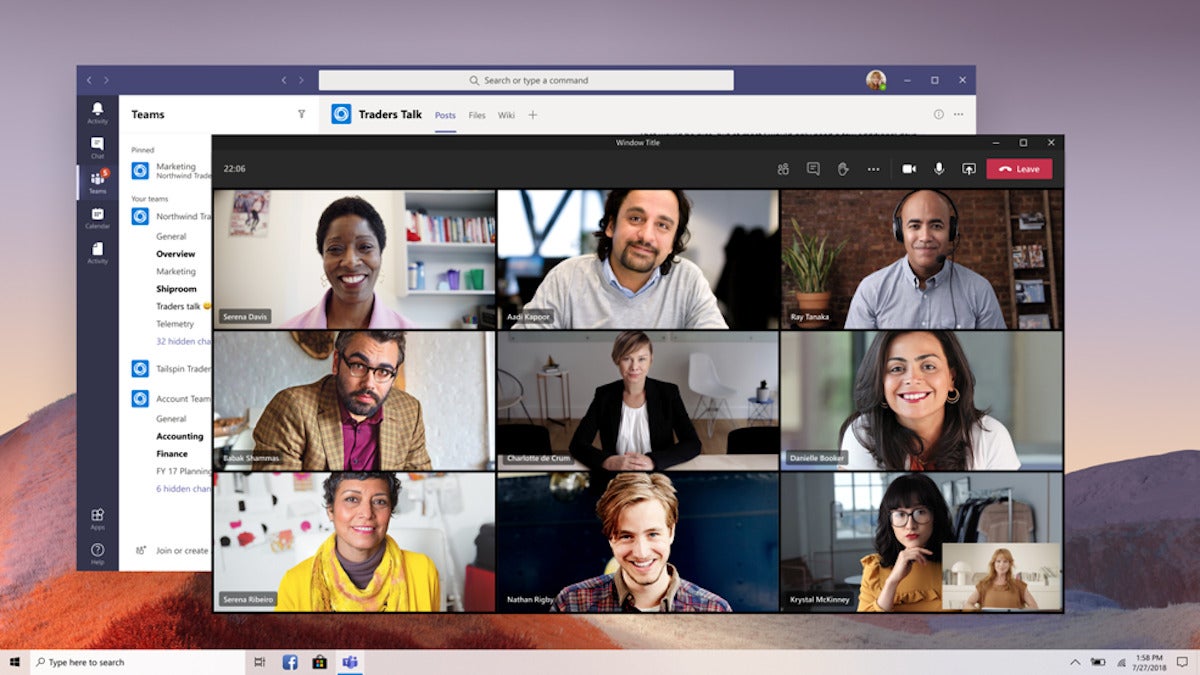
microsoft teams 01 breakout rooms
Microsoft

Breakout rooms enable small-group discussions apart from a larger Teams meeting. (Click image to enlarge it.)

To set up breakout rooms, you must be a meeting organizer or a presenter with breakout room manager privileges. During a meeting, you can access this feature by clicking the Breakout rooms icon (a smaller square on top of a larger square) at the upper right of the meeting window. This will open a panel where you can create one or more breakout rooms and either manually assign people in the meeting to them or have the assignments made automatically.

Alternatively, you can set up breakout rooms before a meeting by opening the meeting invite in Teams and selecting Breakout rooms > Create rooms.

Breakout room managers can also rename breakout rooms, set time limits for breakout sessions, enter and leave various breakout rooms, send announcements to breakout rooms, and more. For details, see Microsoft's support page on setting up and managing breakout rooms.

2. Improved whiteboard

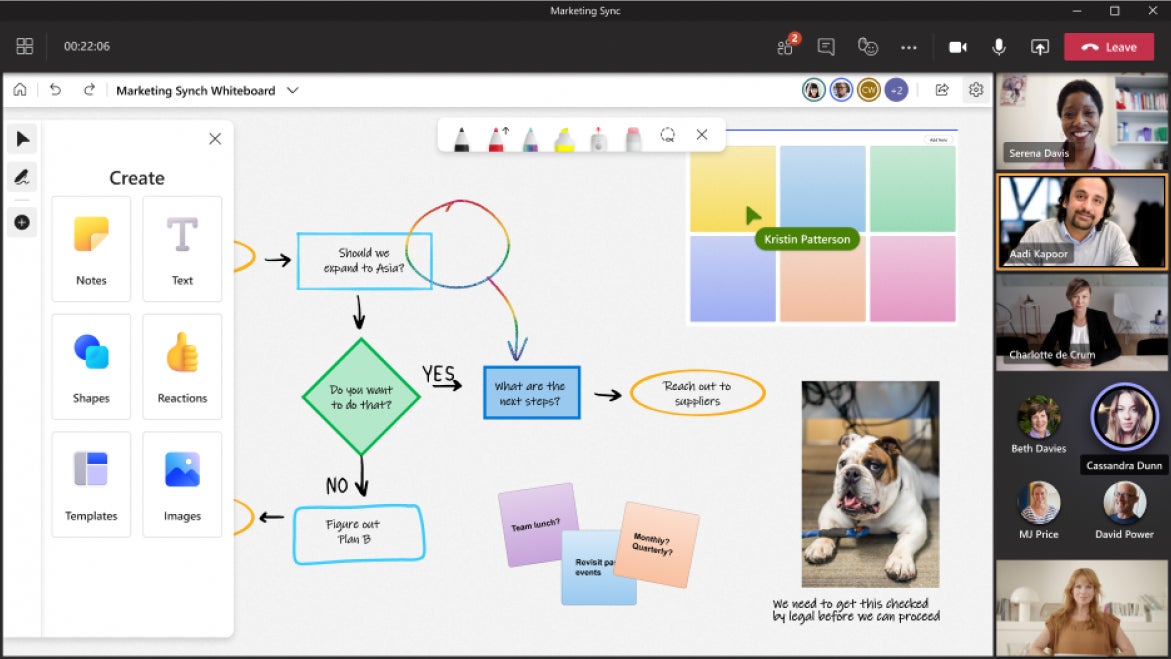
Teams has long integrated with Microsoft's Whiteboard app so that meeting participants can collaborate on a shared virtual whiteboard in real time. Team members can add text, images, diagrams, notes, sketches, and more to a board. The recently revamped version of this app adds a host of improvements including more than 40 new templates, the ability to insert images and documents, reaction icons, and numerous inking tool enhancements.

microsoft teams 02 whiteboard
Microsoft

The Microsoft Whiteboard has an overhauled interface and new capabilities. (Click image to enlarge it.)

To launch the Whiteboard app while in a meeting: At the upper right of the meeting window, click the Share content (up arrow) icon. On the panel that opens, click Microsoft Whiteboard.

Outside of a meeting, you can add the Whiteboard app to any of your Teams channels. (It can be useful to work on a whiteboard before or after a meeting.) Open the channel and click the + icon at the top of the channel. On the "Add a tab" pane that opens, click the Whiteboard icon. Another pane will open where you type in a name for the whiteboard. Click the Save button on the lower right, and your new whiteboard will be added to this channel.

You can also add a whiteboard to a chat. Open the chat. Whiteboard may already be listed as a tab along the top of the chat window. (Or you may need to click More to open a small menu that lists Whiteboard on it.) If Whiteboard is listed as a tab, click it to launch the Whiteboard app in the chat. If it isn't listed anywhere along the top of your chat, then click the +icon and follow the same steps above for adding a whiteboard to a channel.

3. Live transcription

Teams has long offered text transcripts of recorded meetings after the meetings are over. Another useful longtime feature is AI-driven text captioning that shows what meeting participants are saying in real time. A newer live transcription capability combines those two features, offering a Transcript sidebar that shows everything that's been said in a meeting, complete with speaker attribution.

microsoft teams 03 live transcription
Microsoft

A live meeting transcript can help participants keep up with everything that's been said in a meeting. (Click image to enlarge it.)

Live transcriptions can help those who can't hear well or who are not completely fluent in the language being spoken in the meeting. And anyone who arrives late to a meeting or is momentarily distracted can quickly catch up by scrolling back through the Transcript sidebar. The complete transcript is available after the meeting is over for invitees who missed the meeting or participants who want to review what was said.

To start live transcription in a meeting, click the three-dot More actionsicon at the upper right of the meeting window, and from the menu that opens, click Start transcription. Meeting participants will see a notification saying that the meeting is being transcribed.

Alternatively, if you record a meeting (click the More actions icon and select Start recording), live transcription is automatically turned on at the same time. Meeting participants will see a notification saying that the meeting is being recorded and transcribed.

Teams currently supports live transcription in 28 languages. If everyone in the meeting is speaking a language other than English, you can change the transcribed text to the one that they're speaking. Click the three-dot icon at the top of the Transcript sidebar, select Change spoken language, select a different language, and click Confirm.

After the meeting, the transcript will be available for download in the meeting event on the calendar.

Live transcription must be allowed by your Teams admin. For more details, see Microsoft's support page on live transcriptions in Teams.

4. Spotlighting people

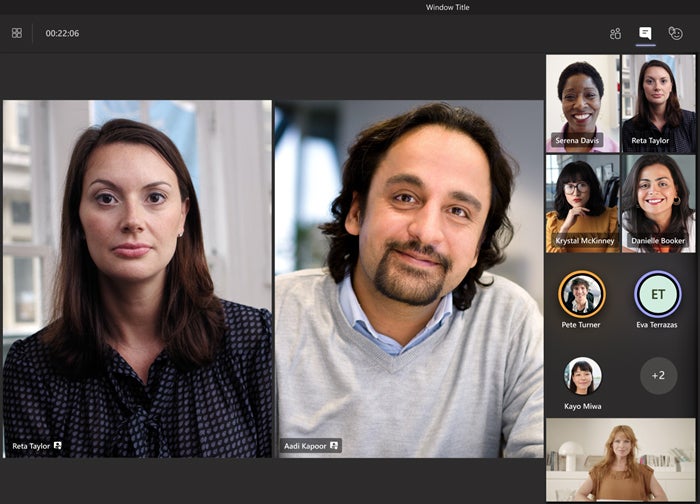
Meeting organizers and presenters can "spotlight" certain meeting participants — for instance, at an all-company meeting where a few leaders are frequently called on. When you spotlight someone, their video feed is displayed prominently in the meeting window for all participants, basically pinning it in a prominent position onscreen. Up to seven people can be spotlighted at a time.

microsoft teams 04 spotlight
Microsoft

You can spotlight certain participants for everyone in the meeting. (Click image to enlarge it.)

To spotlight someone, right-click on the person's video (or your own) and select Spotlight from the menu that opens. (If the video of at least one other person has already been spotlighted, this option will say Add spotlight.)

Alternatively, you can select the Show participants icon (with two people on it) at the top of the screen to see a list of every person in the meeting. Right-click on a person's name and select Spotlight from the menu that opens.

To remove a person from a spotlight, right-click on their video and select Stop spotlighting from the menu that opens. You can stop spotlighting everyone in the Show participants list.

Note that the Spotlight feature isn't available if your view of everyone's video feeds is set to "Large gallery" or "Together" mode. Also, if your meeting is being recorded, a person's spotlighted video won't appear as spotlighted in the final recording.

5. PowerPoint grid view and more

There's an improved way to present a PowerPoint document in a meeting, where you can show specific slides and not have to flip through all of them. At the upper right of the meeting window, click the Share content(up arrow) icon. On the panel that opens, scroll to the "PowerPoint Live" section and click Browse OneDrive or Browse my computer, whichever has the PowerPoint document that you want to present.

After the PowerPoint document is loaded, you'll see the slide that's being presented to meeting participants in the main area of your screen, with a strip of thumbnails for other slides along the bottom of the window. You can click any thumbnail to go directly to that slide.

Below the slide that is being presented, there's a Grid view icon (with multiple squares). Click this icon or press the "G" key, and the slide thumbnails will be arranged in a grid. You can click one of these thumbnails to present it for people in the meeting to see.

Meeting participants watching a PowerPoint Live presentation in Teams have a Grid view icon as well; they can use it to jump to any slide in the deck and then click the Sync to Presenter icon to return to the slide being presented.

For more details on grid view and PowerPoint Live, see Microsoft's support page on sharing PowerPoint slides in a Teams meeting.

Also new is the ability to stop presenting a PowerPoint deck and then pick up where you left off later in the same meeting — handy for when you want to break up a long presentation with a different presenter or activity.

6. Presenter mode

This feature brings together your video feed and the document or image you're presenting to others in the meeting to see in one of three ways:

  • Standout removes the background behind you and replaces it with the content you're presenting.
  • Reporter places the content above your right shoulder in a layout like what you see on the TV news when an anchorperson is onscreen.
  • Side-by-side is simply your video feed and the content you're presenting set next to one another.
microsoft teams 06 presenter mode reporterMicrosoft

Presenter mode combines your video feed with the content you're presenting.

At the upper right of the meeting window, click the Share content (up arrow) icon. Under the "Presenter mode" heading at the top of the panel that opens, click the icon for your preferred presenter mode.

To start your presentation, choose an item under either "Screen" or "Window" in the panel. (Presenter mode does not currently work with PowerPoint presentations, though Microsoft says that capability is coming in the future.)

For more details, see Microsoft's support page on using presenter modes.

7. Content from camera

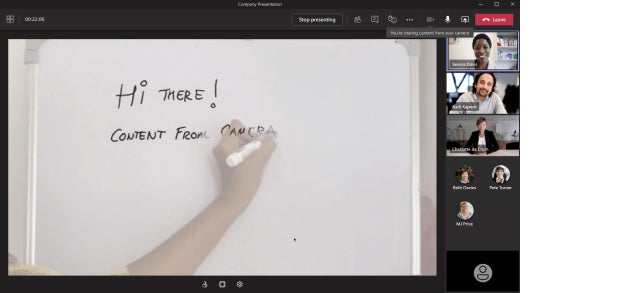
This feature enhances the image of an object in your room, such as a whiteboard, book, or paper document, so that people in your meeting can see it more clearly. It also includes a special effect to make you appear slightly transparent when your body, arm, or hand is in front of the whiteboard or other object or over the document.

microsoft teams 07 content from cameraMicrosoft

Use the "Content from camera" feature to sharpen whiteboards or other written material.

At the upper right of the meeting window, click the Share content (up arrow) icon. On the panel that opens, click Content from camera and choose WhiteboardDocument, or Video. (Video is for showing product demos or other live action.) In a preview window, you'll be instructed to point your device's camera or a connected external camera at the whiteboard or document. When your whiteboard or document comes into focus, this feature will enhance the legibility of the words and images on it. You can then click the Share button to present it to people in your meeting.

For more details, see Microsoft's support page on sharing whiteboards and documents via your camera.

8. Call quality monitor

If the audio or video of your meeting is spotty or lacking, you can check on what may be the cause. At the top of your call window, click the three-dot More actions icon. From the menu that opens, click Call health. A sidebar will appear along the right showing the technical statuses of your network, audio, video, and screen sharing. For details on how to read the call health stats, see Microsoft's support page on monitoring call and meeting quality in Teams.

9. Keyboard shortcuts for virtual hand raising

Teams' "raise hand" feature lets meeting participants signal to the host that they have a question or comment without interrupting the speaker. In 2021, Microsoft added a keyboard shortcut to make this quicker.

To raise or lower your hand and see who else has theirs raised, press Ctrl-Shift-K on Windows or ⌘-Shift-K on macOS. To have your screen reader read aloud a list of others who are raising their hand, click Ctrl-Shift-L on Windows or ⌘-Shift-L on macOS. (See more Microsoft Teams keyboard shortcuts.)

10. Meeting recaps

After a meeting ends, you can find a summary of it in the chat group that's automatically created for the meeting. In the left sidebar of the Teams app, click the Chat icon. In the second column, look for the title of the finished meeting and click it.

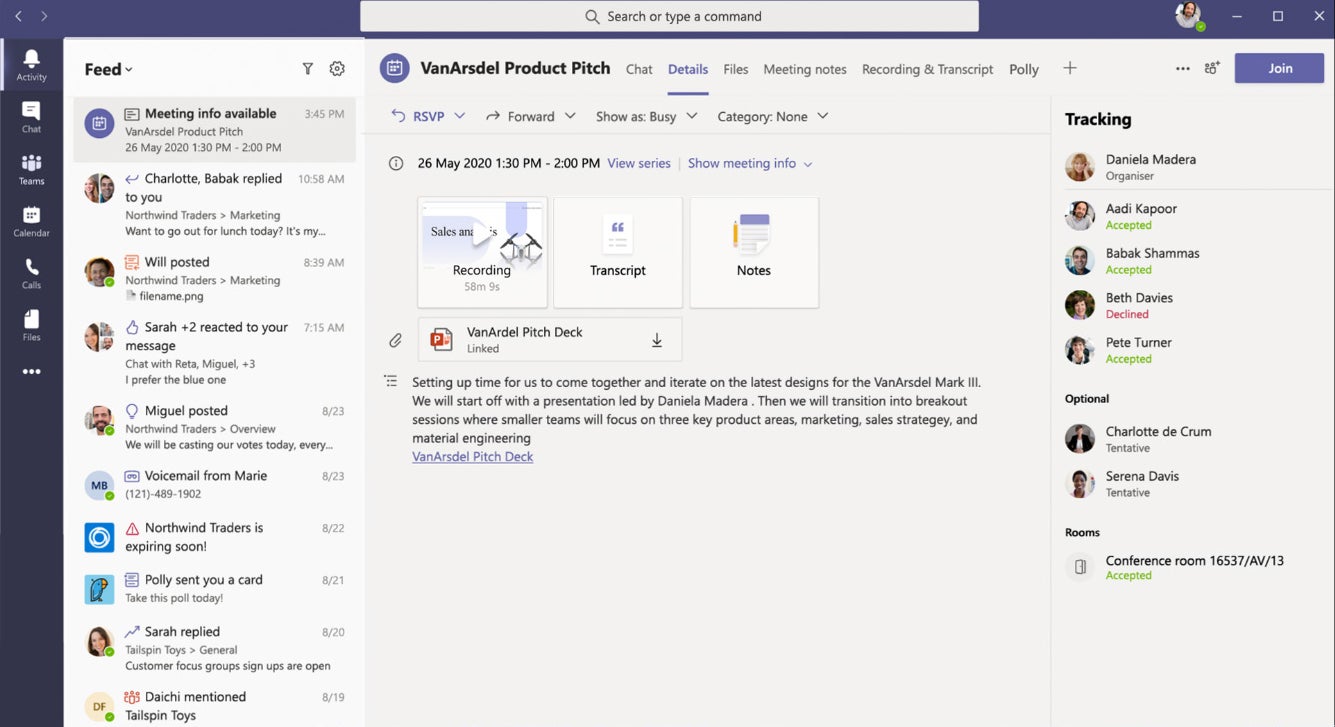
The recap window includes the chat text, notes taken, and files shared during the meeting, as well as a video recording and transcription if they were created. If you're the organizer of the meeting, an attendance report will also be included; it can be downloaded as a .csv file.

microsoft teams 10 recap meeting
Microsoft

Teams meeting recaps include meeting notes, recordings, transcripts, files shared, and more after a meeting. (Click image to enlarge it.)


Wednesday, November 4, 2020

US Election 2020 - Counting TIMELINE

US Election 2020 - Counting TIMELINE

https://edition.cnn.com/2020/11/04/politics/how-long-states-have-to-count-votes/index.html


(CNN)
President Donald Trump tried to declare victory in the presidential election early Wednesday.

But he hasn't won, because all the votes haven't been counted -- and in some ways, the process is just getting started.
While Americans vote on or before Election Day, picking the US president is actually a months-long process and the election is just one step.
The system is especially confusing because voters only cast ballots to determine which candidate gets to send a handpicked group of allies known as electors to the Electoral College, where the actual presidential vote takes place. (Here's a refresher on that.)
The whole timeline is below.


November 3 – Election Day

Voters vote, votes are counted.

While many millions of Americans cast their ballots in the weeks leading up to Election Day, either by mail or as an in-person absentee voter, US law says Election Day occurs on the first Tuesday after the first Monday in November. Votes are counted across the country on Election Day. While news networks will project winners in certain races, there is always time after Election Day for provisional or mail-in votes to be counted.

November 4 – November 23

More votes are counted.

Mail-in ballots must be postmarked by November 3 in every US state, but they can be received late and still counted in many states. In most cases, they must be received within a day or two of Election Day. But in Washington state, mail-in ballots can be received as late as November 23 -- the day before the state certifies its election results. In the battleground states of North Carolina and Pennsylvania, mail-in votes can be received until November 6.

In the battlegrounds of Minnesota and Nevada, they can be received until November 10. And in Ohio, they can be received until November 13.

November 10 – December 11

States certify election results.

Each state does it a little bit differently, but starting a week after Election Day, state governments begin to certify their election results. Those deadlines can be changed in the event of a state recount if there is an extremely close result. Most of these dates occur in the last two weeks of November and all but California's are mandated to occur by December 8.

December 8

"Safe harbor" to determine election results and assign electors.

Under the Electoral Count Act, this is the date by which states are meant to have counted votes, settled disputes, and determined the winner of their electoral college votes. Governors are supposed to create certificates of ascertainment listing the winner of the election and the slate of electors. In 2000, the Supreme Court ended a targeted recount in Florida because it could not be completed by this safe harbor date. That recount would not have changed the outcome of the election, but a full statewide recount could have made Al Gore president. This is when it could become very important for Republicans that they control more state legislatures than Democrats, including in most of the contested 2020 battleground states.

December 14

Electoral votes cast.

In law this date is the first Monday after the second Wednesday in December. This year it falls on December 14. Six days after disputes are supposed to be settled, electors are supposed to meet in their respective states and cast votes for US President. They certify six sets of votes and send them to Washington. Many states have laws requiring their electors to support the winner of their state's election and can levy fines against faithless electors who go their own way.

December 23

Electoral Votes must arrive in Washington.

The certified electoral votes have nine days to get from their states to Capitol Hill.

January 3

New Congress is sworn in.

Members of the House and new members of the Senate take the oath of office at noon. This is the official start of the 117th Congress.

January 6

Electoral votes counted.

Members of the House and the Senate all meet in the House chamber. The President of the Senate (Vice President Mike Pence) presides over the session and the Electoral votes are read and counted in alphabetical order by two appointees each from the House and Senate. They then give their tallies to Pence, who announces the results and listens for objections.

If there are objections or if there are, somehow, multiple slates of electors put forward by a state, the House and Senate consider them separately to decide how to count those votes.

What if there's no winner? There are 538 electoral votes -- one for each congressman and senator plus three for Washington, DC. If no candidate gets 270, the 435 members of the House decide the election. Each state gets a vote. While there are more Democrats in the House, Republicans, as of now, control more state delegations, so it is very possible the House could pick Donald Trump even though there is a Democratic majority. It requires a majority of state votes to become President. The House has until noon on January 20 to pick the President. If they can't, it would be the vice president or the next person eligible in the line of presidential succession. If neither a president or vice president were picked, the next person in the lie of succession is the speaker of the House, which today is Nancy Pelosi.

Meanwhile, according to the 12th amendment, senators pick the vice president. It is technically possible the House could get deadlocked on the president and the Senate could pick a vice president who would become President. Republicans currently hold the Senate majority, but Democrats hope to win it in November.

If there's a 50-50 tie in the Senate, it's strangely possible that Vice President Mike Pence could cast the deciding vote that gives him another term.

January 20

Inauguration Day.

A new president takes the oath of office at noon. If the President-elect dies between Election Day and Inauguration, the vice president-elect takes the oath of office and becomes President. In a disputed election, if the House has not chosen a President but the Senate has chosen a vice president, the vice president-elect becomes acting president until the House makes a choice. And if there's no president-elect and no vice president-elect, the House appoints a president until one is chosen. Under the Presidential Succession Act, that placekeeper president would likely be Nancy Pelosi if she resigned from Congress.